1.4. Species priorities in Colombia: rasterio, numpy, and GDAL#
This exercise will get us started with geo-referenced raster data (e.g., satellite images) in Python, including reading, writing, visualizing, stacking, and coarsening.
Deliverables
Four maps of species richness in Colombia, each assigning different weights (priority) to each individual species (equally, by threat, by rarity, etc.)
Due date
Tuesday, September 29, 2026, by 6:00 p.m.
1.4.1. Create a new notebook#
Start Jupyter, open a new notebook (~/ee508/notebooks/lab1/lab1-4.ipynb), and run the following import commands:
import os
import subprocess
from pathlib import Path

import geopandas as gpd
import matplotlib.pyplot as plt
import numpy as np
import pandas as pd
from rasterio import open as r_open
from rasterio.plot import show as r_show
Adapt these filepaths to your filesystem:
DIR_EE508 = Path("~").expanduser() / 'Dropbox' / 'Outputs' / 'Courses' / 'ee508'
DIR_LAB1_1 = DIR_EE508 / 'data' / 'external' / 'lab1' / 'part1'
DIR_LAB1_4 = DIR_EE508 / 'data' / 'external' / 'lab1' / 'part4'
DIR_LAB1_4_PROCESSED = DIR_EE508 / 'data' / 'processed' / 'lab1' / 'part4'
DIR_REPORTS_LAB1 = DIR_EE508 / 'reports' / 'lab1'

PATH_NE_COUNTRIES = (
    DIR_LAB1_1 / 'ne_10m_admin_0_countries_lakes' / 'ne_10m_admin_0_countries_lakes.shp'
)
1.4.2. Get the species distribution data#
We will be working with modeled species distribution raster data for 238 threatened, near-threatened, and range-restricted vertebrate species in Colombia. The data is produced by BioModelos, a collaborative mapping project led by the Humboldt Institute, Colombia’s leading public biodiversity research institute.
The maps are created using MAXENT, a popular species distribution mapping algorithm. It predicts the likelihood that the species occurs in any given area by combining point observations of species with rasters of environmental variables (e.g., climate, land cover).
Download the .zip archive of the maps (23.5M) from the EE508 drive:
Unzip the archive. You get 238 .tif files and a .csv file.
You can find information about each species in species.csv.
Read the .csv table into a DataFrame called species. Set the column 'name' as its index.
Use .head() and .value_counts() to find out how many species there are of each class, and what their threat category is, according to the International Union for the Conservation of Nature (IUCN).
The species in this dataset were selected because:
they had a BioModelos map (which means: sufficient observations to make a model) and because they were either
classified as threatened or near-threatened by IUCN or
had a IUCN range size of less than 50,000km2 (see column
km2).
In choosing these species, we’re applying the same criteria as the researchers from whom we got the data:
Velásquez-Tibatá J, Salaman P, Graham CH (2013) Effects of climate change on species distribution, community structure, and conservation of birds in protected areas in Colombia. Reg Environ Chang 13(2):235–248. Download here
Question
Can you find out how many species were included for which reason?
The function pd.crosstab allows you to cross-tabulate two variables (similarly to table in R):
pd.crosstab(species['category'], species['km2'].lt(50000))
The variable category is ordered alphabetically because it is provided as strings. You can let pandas know that these strings have a sorting order, ranking from most to least threatened. You do so by casting the Series into a different variable type: an “ordered Categorical“. After that, the output of pd.crosstab will be automatically ordered as well:
species['category'] = pd.Categorical(
    species['category'],
    ordered=True,
    categories=['CR', 'EN', 'VU', 'NT', 'LC', 'DD'],
)
pd.crosstab(species['category'], species['km2'].lt(50000))
Note, for instance, that there are no “least concern” (LC) species with a IUCN range larger than 50,000 km2 in the dataset. (I excluded them.)
Instead of having to count the numbers of each category, you can also answer the question by turning the ‘category’ series into a True/False condition:
pd.crosstab(
    species['category'].isin(['CR', 'EN', 'VU', 'NT']), species['km2'].lt(50000)
)
1.4.3. Explore the raster data#
Choose a species whose modeled distribution you’d like to visualize. For simplicity, we’ll pick the first one here. If you’re curious, Google a few species names and pick one that you are particularly curious about (check out Saguinus leucopus).
rasterio’s open command, which we imported at the beginning and gave the alias r_open, creates a file connection to a raster file. You need this file connection for reading and writing. It allows you to get (in the case of reading) or define (in the case of writing) vital information about the raster file, such as projection information, resolution, format, compression, etc.
r_file = r_open(DIR_LAB1_4 / 'Aburria_aburri_10p_cut.tif')
What do the following commands return?
r_file.crsr_file.shaper_file.boundsr_file.count
Guess their meaning or look it up in the rasterio documentation: Python Quickstart.
Also note r_file.transform. This is an Affine object: a special kind of matrix that maps the coordinates of each raster pixel (by column and row; starting in the upper left corner) to the coordinates of the projection (x, y).
For instance, you can obtain the coordinates (here: in lat / long) of any pixel for which you know the row and column number:
r_file.transform * (col, row)
Question
What are the CRS coordinates of the upper left pixel (0, 0)?
The raster file has only one band (see r_file.count). The command .read(n) reads the n-th band.
r = r_file.read(1)
What kind of object is r? Find out: type(r)
r is a numpy array (the class is called ndarray). numpy is the most popular package for matrix computing in Python. It is the standard for processing arrays and matrices. It also forms the backbone of pandas and geopandas. numpy has a vast library of functions, which you can apply to any raster array imported via rasterio.
Caution
The imported numpy array r does not have any CRS information, nor any other information needed to geo-locate the array correctly (extent, resolution, etc.).
The geospatial metadata always has to be obtained from the rasterio file connection (r_file).
What dimensions (numbers of columns and rows) does r have? Find out with r.shape.
This should enable you to compute the number of pixels in the raster.
A little Python trick: r.shape returns a tuple with two entries. You can use a tuple (or lists or sets) to set multiple variables at once:
n_rows, n_cols = r.shape
n_rows * n_cols
Tip
Did you know? You can use a, b = b, a to switch the values of two variables.
Caution
Pay close attention to the order in which different packages return or expect the two dimensions of a grid (x and y, rows and columns).
By default, r.shape returns the length of the axis in the row / column order (n_rows, n_cols). This is common in matrix computation. Note that this is also the order in which pandas.loc receives the dimensions (index, columns).
In contrast, the order expected by most plotting functions is first x, then y. This is also the order expected by the above transformation matrix.
Mixing up the two dimensions can happen very easily. Watch out for this issue, and always double-check your work.
What is the distribution of values in the raster? Inspect the histogram:
plt.hist(r.ravel(), bins=50)
.ravel()returns a 1-dimensional (“flattened”) view of anumpyarray. It is needed because our raster data is 2-dimensional), but.hist()expects a 1D sequence of values.
1.4.4. Visualize the raster data#
Let’s make a map of the raster you just imported. You have two options:
Using
rasterio’s ownshowfunction (which we imported above asr_show):r_show(r)
Or using
matplotlib’sax.imshowcommand:fig, ax = plt.subplots() ax.imshow(r)
Both functions should show exactly the same map, because r_show also calls ax.imshow internally. r_show has the nice property that passing a transformation matrix will display the correct coordinates. This is good for quick mapping:
r_show(r, transform=r_file.transform)
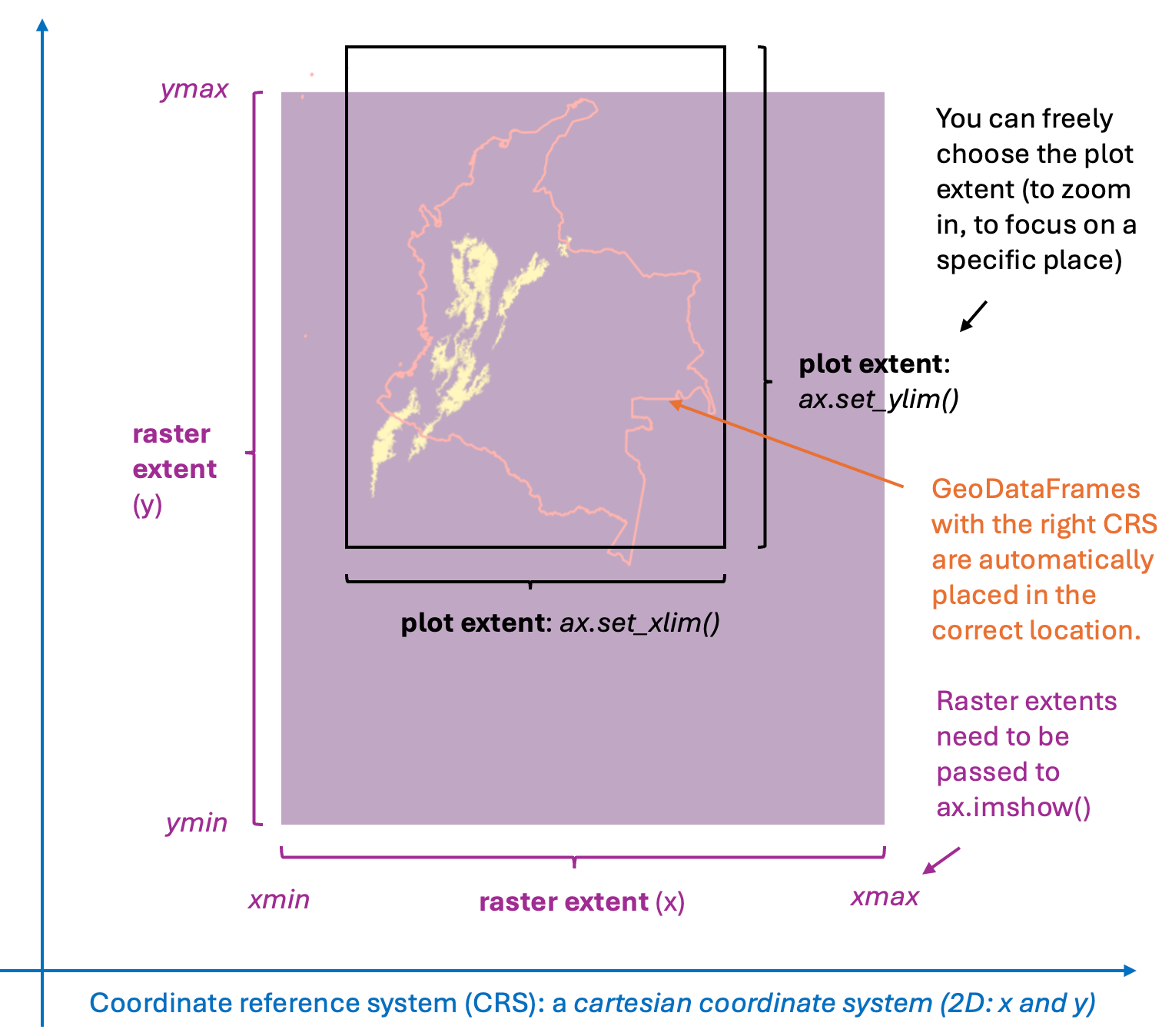
The same can be achieved by passing the raster extent (the coordinates of its outer boundaries) to ax.imshow.
Doing so requires reading and reordering the extent of the bounding box info provided by r_file:
xmin, ymin, xmax, ymax = r_file.bounds
fig, ax = plt.subplots()
ax.imshow(r, extent=(xmin, xmax, ymin, ymax))
Caution
Once more, pay attention to the order in which different packages return or expect the four bounds of a raster extent (xmin, xmax, ymin, ymax or left, right, bottom, top). The first and last are usually in the same position, but the middle ones often switch positions.
r_file.bounds returns the four bounds in the order xmin, ymin, xmax, ymax.
The extent argument of ax.imshow expects the four bounds in the order xmin, xmax, ymin, ymax
Again, it’s very easy to mix up these different notations. Watch out for this issue.
rasterio can also build that tuple for you, in the order ax.imshow expects:
from rasterio.plot import plotting_extent
fig, ax = plt.subplots()
ax.imshow(r, extent=plotting_extent(r_file))
Print r_file.bounds and plotting_extent(r_file) next to each other to see the difference.
You can now modify and save this plot like any other matplotlib plot.
Pass a different colormap to
imshowwith thecmapargument.Change the size:
fig.set_size_inches(15, 15)Add a title:
ax.set_title('Aburria aburri', pad=15, fontsize=25)
You can also add a colorbar legend. To do so, you need to save the AxesImage object returned by ax.imshow and pass it on to plt.colorbar():
img = ax.imshow(r, extent=(xmin, xmax, ymin, ymax))
plt.colorbar(img)
Using what you learned in Lab 1.3, import the boundary of Colombia from the Natural Earth countries layer and plot it on top of the distribution map, so that the boundaries are visible against the raster image but don’t hide it (no fill).
Good news: the vector layer and the raster already have the same CRS, so we don’t need to worry about reprojection.
Caution
Having the same CRS is not enough. Try the overlay once without an extent:
fig, ax = plt.subplots()
ax.imshow(r)
colombia.plot(ax=ax, facecolor='none', edgecolor='black')
The two layers end up in different parts of the figure.
Without extent, ax.imshow places the raster in pixel coordinates, from 0 to r_file.width and 0 to r_file.height, while geopandas plots the boundary in degrees.
matplotlib does not know anything about coordinate reference systems, so extent is what tells it where the image belongs.
Add the extent back in, and the two layers should line up.
Because the boundary of Colombia also includes its Caribbean islands (the species raster layers do not cover the islands), matplotlib automatically extends the upper boundaries of the plot.
You need to reset the extent of the plot to the raster extent by passing the correct end points:
ax.set_xlim(xmin, xmax)
ax.set_ylim(ymin, ymax)
The first line is actually not needed here, because the addition of Colombia only affected the y-axis.
This figure gives you an overview of how CRS, raster extent, plot extent (matplotlib) and GeoDataFrames interact on a map. Commit these relationships to memory!
1.4.5. Assessing memory usage#
How much space does the file we just imported require on your hard drive? Find out in your Explorer / Finder.
In contrast, how much memory does the loaded raster need (as the current numpy array)? You can find out the latter with the command r.nbytes.
Given what you know about the number of pixels in this raster, can you find out how many bytes of memory numpy needs for every single pixel?
The loaded raster needs more than 50x as much space in memory than on the hard drive! Why is that? Two reasons:
The saved raster file was compressed. The compression works well here, because most of the values are
0, and the remainder are1. Whenever you have large contiguous areas with the exact same value in a raster, compression tends to reduce file size considerably.The loaded raster file uses a data type that consumes a lot of space. Which data type? Find out:
r.dtype
You can save memory by casting the raster into a data type that doesn’t require 8 bytes per pixel. Given that all values are 1 or 0, you could cast it into a bool or byte data type, which should consume far less memory:
r.astype(np.bool).nbytes
In this exercise, we will be using fractions of numbers, so let’s keep our numpy arrays in a float datatype that needs only four bytes per pixel.
r = r.astype(np.float32)
r.nbytes
Note
np.float16 would only require 2 bytes per pixel. However, some versions of matplotlib throw an error if imshow is called with rasters of datatype np.float16. If it works for you, feel free to use it.
Question
How much space would we need if we loaded all 238 rasters to memory, and casted them to a np.float32 data type, given that they all have the same dimensions? Calculate that number.
Oops, that’s quite a bit of memory.
We have to coarsen the rasters before we run zonal statistics, so we don’t spend too much time waiting for those rasters to process. In the process, we’ll learn how to use the powerful GDAL command line tools.
1.4.6. Coarsen rasters with GDAL#
Coarsening a raster is a common geospatial operation. As with most common operations, we have multiple options to get it done. For instance, we can use QGIS to do the reprojection. However, when QGIS reprojects a raster, it does so by calling GDAL. Instead of going through QGIS, we can call GDAL directly.
GDAL is the Geospatial Data Abstraction Library, the core data access and translation library that enables most spatial open-source software to read, write, and transform a vast range of raster and vector formats through a unified interface. It underpins tools like QGIS, Google Earth Engine, R and Python geospatial packages (e.g. rasterio, geopandas), and even parts of ArcGIS. Virtually all geospatial file reading/writing in Python uses GDAL under the hood.
GDAL’s fast C/C++ library (libgdal-core) is already part of your ee508 environment, because the other spatial packages need it. You can therefore use GDAL from the command line (Terminal or Anaconda Prompt) when your ee508 environment is activated.
Look up GDAL’s “Traditional applications” to get an overview of the range of raster utilities that you have at your disposal.
In Raster programs, skim the explanations for the following popular tools. Aim for a brief overview of what each tool can do. There’s no need yet to understand the dozens of arguments:
gdalwarpgdal_rasterizegdal_mergegdal_proximity
GDAL not only processes raster data. It also has powerful vector programs. For instance, check out the documentation for ogr2ogr.
gdalwarp lets us reproject (“warp”) rasters. Review its documentation. Try to figure out what the following options mean. We’ll use them in a minute!
-t_srs-te-tr-r-of-co-overwritesrcfile*dstfile
New in GDAL 3.11
GDAL is transitioning the syntax of its tools from the “Traditional applications” to the “gdal” application.
The latter has a sleeker syntax similar to popular developer tools (git, docker, etc.):
gdalwarp>gdal raster reprojectgdal_rasterize>gdal raster rasterizegdal_merge.py>gdal raster mergegdal_proximity.py>gdal raster proximity
This change started with GDAL 3.11. However, QGIS still uses earlier versions of GDAL, and so does the EE508 environment (mine resolves to libgdal-core=3.10.3). Therefore, this lab sticks with the older syntax.
You are welcome to install a separate environment that supports GDAL 3.11+ to play with the new syntax.
1.4.6.1. Run GDAL in QGIS#
If you want to understand how a fully written GDAL command looks like, you can run the same operation through QGIS and inspect the GDAL command that QGIS uses. Let’s do this for gdalwarp:
Open QGIS and start a New Project.
Drag-and-drop the same raster file we just worked with into the new project.
Menu > Raster > Projections > Warp (Reproject)
In Input layer, select the raster you just imported.
Set the Resampling method to use to Average.
In Output file resolution in target georeferenced units, choose 0.025
Open Advanced parameters, if it’s not already open.
In Georeferenced extents of output field to be created [optional], enter: -79.05, -66.75, -4.25, 12.5. Note that these are in the order
xmin, xmax, ymin, ymax.
Note
The coordinates form a rectangle around Colombia’s boundaries, leaving a tiny buffer around the edges.
If you want to come up with your own set of coordinates for a raster image, you can import the NaturalEarth country shapefile into QGIS and zoom to Colombia. Notice how the coordinates of your mouse cursor are displayed in the bar below the map. This allows you to quickly identify a suitable extent for the rectangle you want to display
You can also select the CRS of the target raster extent: EPSG:4326.
This is optional: as we’re not changing the CRS, the input file CRS will be used by default.
In Reprojected, select a filename to save the result to.
Note that, as you are going through these steps, QGIS starts to build a GDAL/OGR console call at the bottom of the dialog box. This is exactly the command that QGIS sends to GDAL for execution. Examine how -tr, -r, -te, and -of are set. Also note the relative position of the input and output file paths.
Run the command.
You can now see a new (coarser) reprojected raster in your QGIS map.
In the Log window, QGIS displays the command that you just executed. It should start with gdalwarp -overwrite -tr 0.025 0.025 -r average -te -79.05 -4.25 -66.75 12.5 -te_srs EPSG:4326 -of GTiff, followed by two filenames.
Caution
Look closer.
Recall the different ordering conventions for the bounds of a raster / image / figure?
Here we have another case of this issue: the QGIS dialog box receives the extent coordinates in a different order than gdalwarp: the second and third argument have switched sides. This is very easy to miss.
Copy the entire
gdalwarpcommand, including the filepaths (right-click > Copy).
1.4.6.2. Run GDAL in the Terminal#
You can take the GDAL command you just copied and run it verbatim in your conda environment (optional).
Delete the coarsened file you just created (overwriting is still off).
Open a new Terminal (or Anaconda Prompt) window.
Activate your Anaconda environment in that window.
Copy and paste the above GDAL command into the Terminal.
Run it. You should get the same output as you got through QGIS.
When QGIS reprojects a raster, it just calls GDAL!
That means we might as well skip QGIS and call GDAL directly.
This will come in handy when we need to coarsen hundreds of rasters. We can let Python build a command for each file, and run it as a independent process.
Python’s subprocess package allows us to run programs in a way similar to how you would run them from the Terminal. We can call its function Popen to execute processes.
Popen expects a command to be passed as a list of strings, with each string representing the parts of the command that are otherwise separated by spaces. For instance, 'conda activate gis' becomes ['conda', 'activate', 'gis'].
Now you have all the information to run a raster reprojection from Jupyter.
Read this code and make sure to understand it. Then try it out.
from_path = DIR_LAB1_4 / 'Aburria_aburri_10p_cut.tif'

to_path = DIR_LAB1_4_PROCESSED / 'Aburria_aburri_coarse.tif'

# Create output directory if it doesn't exist.
if not to_path.parent.exists():
    to_path.parent.mkdir()

# Build GDAL command
command = [
    'gdalwarp',
    '-tr',
    '0.025',
    '0.025',
    '-te',
    '-79.05',
    '-4.25',
    '-66.75',
    '12.5',
    '-r',
    'average',
    '-of',
    'GTiff',
    '-overwrite',
    from_path,
    to_path,
]

proc = subprocess.Popen(
    command, stdout=subprocess.PIPE, stderr=subprocess.STDOUT, text=True
)

for line in proc.stdout:
    print(line, end='')

proc.wait()
GDAL will run the raster reprojection and print out status updates below the Jupyter cell (because we added stdout=subprocess.PIPE, stderr=subprocess.STDOUT, text=True).
If the command executes successfully, the last command (.wait()) will return a 0. If it fails, it will return a 1.
Note
Did you notice? The command we passed doesn’t include all of the parameters that QGIS used.
This is because GDAL doesn’t actually require passing the CRS (-t_srs and -te_srs), if we stay in the same CRS as the original raster file.
_srs stands for Spatial Reference System, an alternative way to refer to a CRS.
The added option -overwrite ensures that you do not have to delete the output files before you re-run the command.
How large is the GeoTIFF (.tif) file we just created? Open your Finder or Explorer to find out.
The file is larger (2.51M) than the original one (889K)! That’s because gdalwarp doesn’t compress files by default.
To compress the outputs, we have to add another argument to the gdalwarp command list (e.g., before from_path).
'-co',
'compress=LZW',
What does this parameter do? Look up the -co argument in the gdalwarp documentation to find out.
Run the command with the new parameters added.
How large is the file you just created? It should be much smaller than the previous one.
Open it with rasterio or in QGIS. Does it look good?
Fantastic.
1.4.6.3. Coarsen all rasters#
You now have all the tools at your disposal to coarsen the 238 rasters. Go ahead and code this up on your own. A few tips:
Probably the most straightforward approach is to create a
forloop that iterates throughspecies.index(e.g.,for name in species.index:)You need to create the correct filenames in each iteration of the loop. If you used the original species names, they still have spaces (
' ') where the filename has an underscore ('_'). Here’s one way to build the filename dynamically:
name_underscore = name.replace(' ', '_')
from_path = DIR_LAB1_4 / f'{name_underscore}_10p_cut.tif'
Because running the full loop take a while (1-2 minutes), you probably want to first test the loop on a subset of rasters until you’re happy with it (
for name in species.index[:5]:). If you want to make sure your loop is still running, you can add aprintstatement to the beginning of the loop (e.g.,print('.', end=''))Once you are done, you should have 238 coarsened raster files in your processed data folder, all of which are exactly in the same projection and transformation. This makes it easy and quick to do the next steps.
1.4.7. Create maps of weighted species richness#
1.4.7.1. Sum raster values pixel-by-pixel#
Once you have imported rasters as arrays, aggregating them (e.g., adding them) is easy.
This code reads and adds all coarsened rasters:
r_sum = None

for name in species.index:

    # See progress
    print('.', end='')

    # Define the path of the coarsened raster
    path = DIR_LAB1_4_PROCESSED / (name.replace(' ', '_') + '_coarse.tif')

    # Read the first band of the raster and cast it to float32
    r = r_open(path).read(1).astype(np.float32)

    if r_sum is None:
        # First iteration of `for` loop: initialize r_sum with r
        r_sum = r
    else:
        # Later iterations: add new raster array to cumulative sum
        r_sum = r_sum + r
An alternative approach is to initialize an empty raster with the correct shape. The code below assumes that you already have some raster r_ref with the right shape (tuple of numbers of rows and columns) in memory. If you don’t, just load one of the coarsened rasters with rasterio’s read().
import numpy as np

# Initialize empty raster with same shape as raster array `r_ref` (loaded)
r_sum = np.zeros(r_ref.shape)

for name in species.index:

    # See progress
    print('.', end='')

    # Define the path of the coarsened raster
    path = DIR_LAB1_4_PROCESSED / (name.replace(' ', '_') + '_coarse.tif')

    # Read the first band of the raster and cast it to float32
    r = r_open(path).read(1).astype(np.float32)

    r_sum += r
Note the last lines: r_sum + r is an elegant (short and sweet) numpy notation to add the values of one array to that of another cell-by-cell (and here, therefore: pixel by pixel).
Visualize the array r_sum with ax.imshow(). Does this look like a map of species richness (for threatened, near-threatened and range-restricted species)?
If you would like to see a histogram of the (pixel) values of the array, you can pass a flattened (i.e., one-dimensional) version of your array to matplotlib’s hist function: plt.hist(r_sum.ravel())
1.4.7.2. Save the richness raster#
When you create a new raster file using rasterio, you need to pass all the parameters required to define and geo-reference a raster dataset: file format, height, width, number of bands, data type, CRS, transformation, and compression.
Height, width, number of bands, and data type is also metadata of the
numpyarray you want to save.We can copy CRS and the transformation from a reference raster that already has the geospatial metadata we need (CRS, transformation). I will use
pathto refer to the path to a reference raster.Note that, right after running the above loop, the name of the last coarsened raster is still saved in the object
path, and it has the correct geospatial metadata. We can use it as is:
out_path = DIR_LAB1_4_PROCESSED / 'richness' / 'richness_equal_weights.tif'

r_file_ref = r_open(path)

r_open(
    out_path,
    'w',
    driver='GTiff',
    height=r_sum.shape[0],
    width=r_sum.shape[1],
    count=1,
    dtype=r_sum.dtype.name,
    crs=r_file_ref.crs,
    transform=r_file_ref.transform,
    compress='lzw',
).write(r_sum, 1)
1.4.7.3. Apply alternative weighting formula#
What if we weighted each species differently, as a function of its threat status or the size of its range? You can find out by modifying your above code just slightly. Simply multiply each imported raster (numpy array) by a (constant) species-specific weight (e.g. r *= 10) before adding it to r_sum.
First, create an aggregate raster where each species is assigned a weight as a function of its threat status, as follows:
IUCN Status
Weight
CR
10
EN
4
VU
1
NT
0.5
LC
0
DD
0
Remember that, in the
forloop, you can obtain information for each species withspecies.loc[name]['variable_name']orspecies.loc['name', 'variable_name'].You can set those species weights in the
forloop with multipleifstatements. However, more elegantly, you can create an additional column inspeciesthat contains the species weights. Figure out how to do this by looking up the help page for pandas.Series.map and notice how you can replace values with a dictionary. Once you have added that column, you can obtain the weight within theforloop withspecies.loc[name, 'name_of_weight_column'].Make sure you understand each step of the above
forloop well enough before running it. Sometimes, students forget to weigh the first raster.
How does the raster look - very different from the previous one?
Second, create an aggregate raster where each species is assigned a weight as a function of its IUCN range. Use the inverse of the range area (1 divided by the range area in km2) as weights.
How does the map look? Are there any new locations highlighted that weren’t quite as prominent in the previous maps?
Note
This measure of rarity-weighted species richness is very similar to the one used by Jenkins et al. (2015). However, we’re not considering baseline protection. There are good spatial protection datasets for Colombia, though, in case you want to pursue a more in-depth study of Colombia as part of your project.
Finally, create an aggregate raster where each species is assigned a weight inversely proportional to the size of its range as modeled by BioModelos within our raster extent.
A simple way to do this is to divide each raster by the mean of its cell values, e.g.:
r = r / r.mean()orr /= r.mean().How does the map look? Are there any new locations highlighted that weren’t quite as prominent in the previous maps?
If you did everything correctly, there should be one site that really stands out. This article might tell you a bit more about this special place. It is based on an analysis, not too dissimilar from ours, that was published in Science in 2013.
1.4.8. Wrap up#
Time to deliver! Use ax.imshow() and the matplotlib commands from previous exercises to save a high-resolution map of each raster.
Make sure each map has a meaningful title and shows the coordinates in projection units. Use the colormap
'Spectral_r'. Add a colorbar. Add the boundaries of continental Colombia in a way that is visible against the rasters but does not extend the plotting extent to the Caribbean. Save the figures under the following names:~/ee508/reports/lab1/4_richness_equal_weights.png~/ee508/reports/lab1/4_richness_weighted_by_threat.png~/ee508/reports/lab1/4_richness_weighted_by_range_iucn.png~/ee508/reports/lab1/4_richness_weighted_by_range_biomodelos.png
Do not delete the 238 coarsened raster files. We will need them later. If you need space, you can now delete the original rasters (226M unzipped).
Write up a short summary (~300 words) of your results: how does the analysts’ choice of weighting and species data affect which areas are identified as priorities?
~/ee508/reports/lab1/4_writeup.docx
Compress the five files into a single .zip archive.
Find the Google Assignment with the lab title on the Blackboard course website.
Upload your .zip archive.
Congratulations!
You made substantial progress in your knowledge of raster processing in Python.
You used rasterio to import, save, and visualize rasters, learned how to use the GDAL command line utilities, and used simple numpy additions and multiplications to create aggregate rasters.
These skills have now given you the ability to quickly verify how species priority maps can change as a result of changes in weights.
How good are these distribution maps?
It is hard to tell without digging further into the methods and data behind each distribution model.
As many distribution maps, they might be biased towards locations where ecologists and other nature lovers like to travel to collect data.
Because some locations might be difficult to access (for reasons of safety or missing infrastructure) or just less pleasant to visit, species presence is often systematically underreported in remote or challenging landscapes.